Trips and Collections
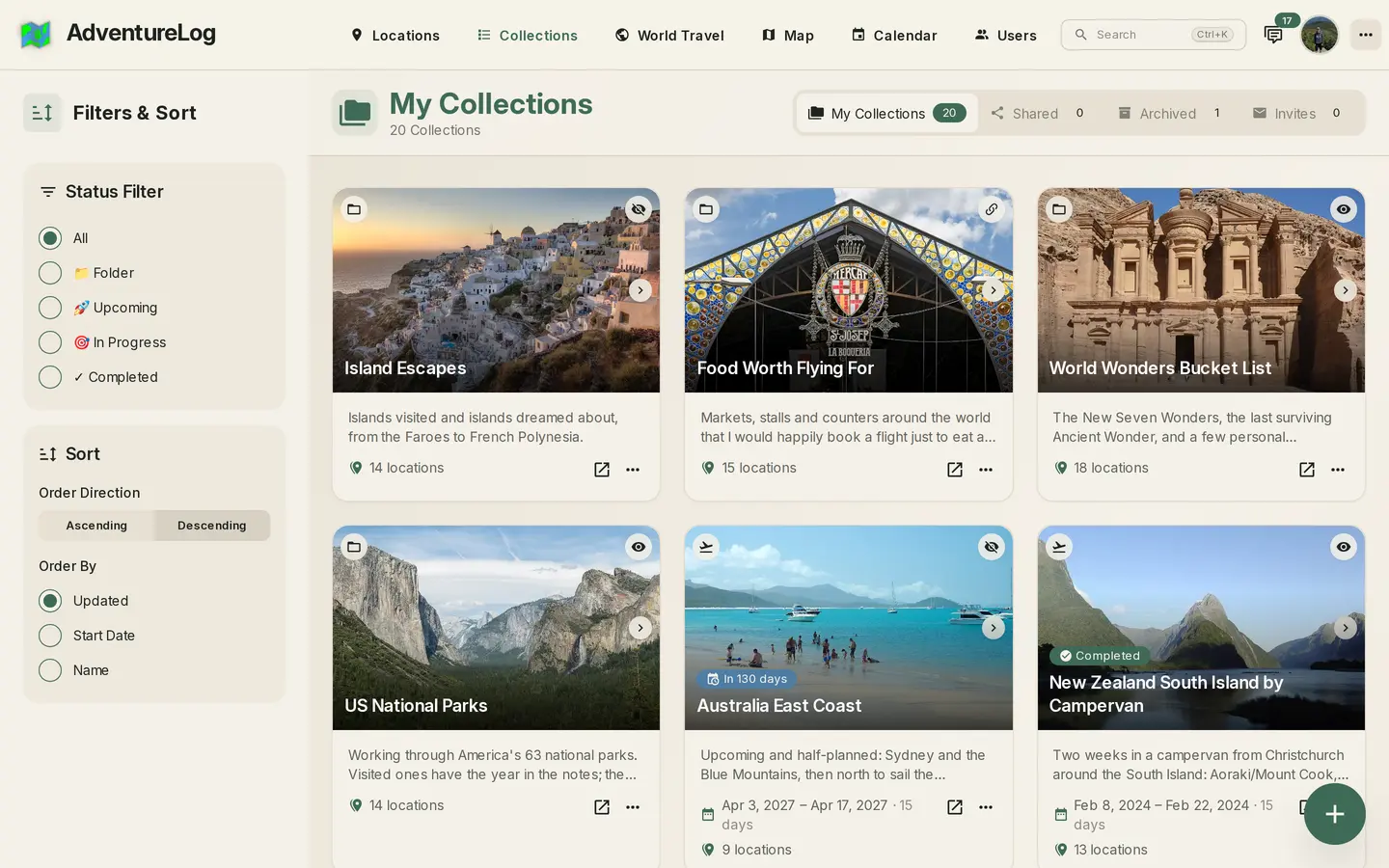
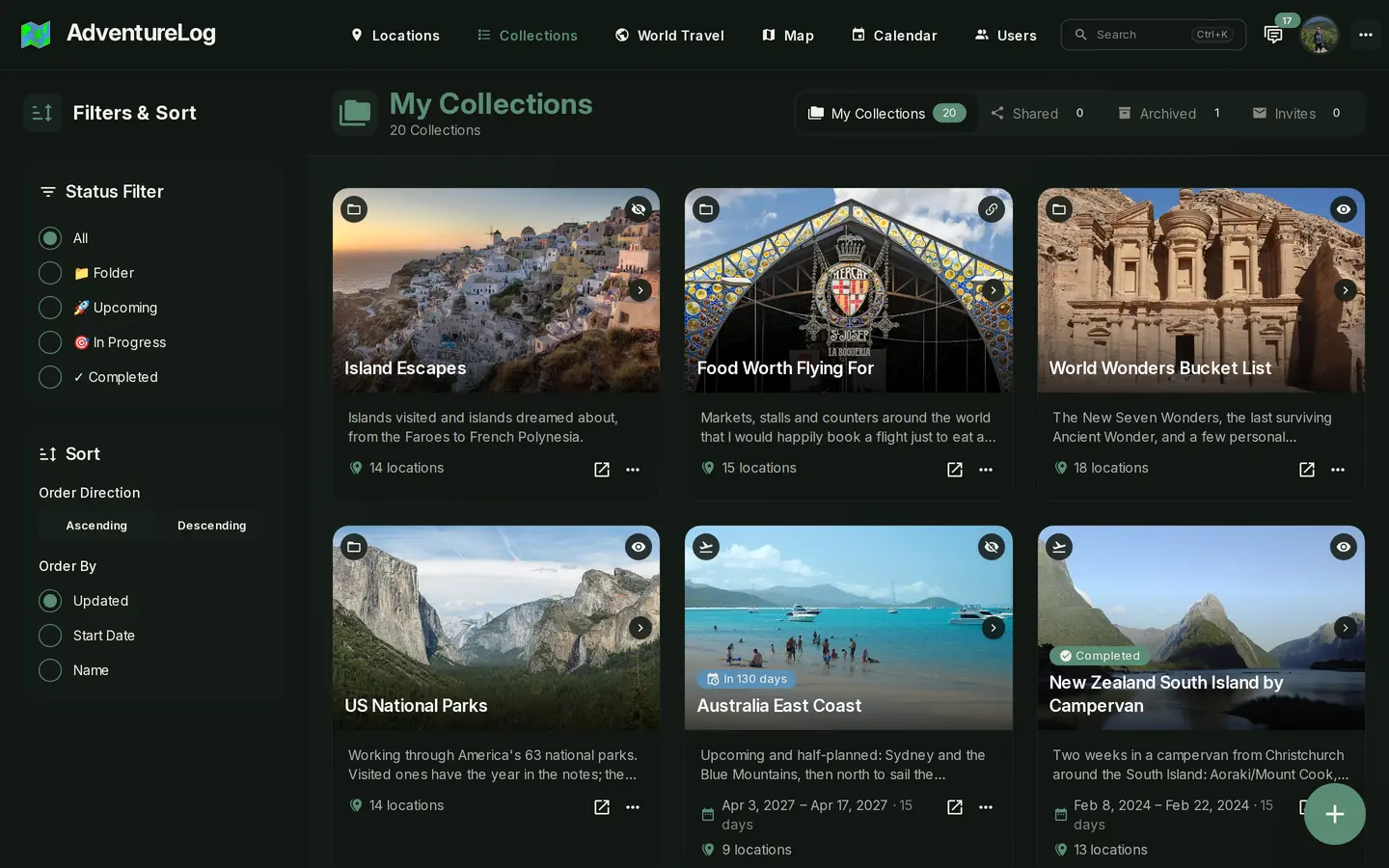
A collection groups locations together. There are two kinds:
- A Trip plans an itinerary day by day.
- A Folder simply groups locations, with no dates needed. Use one for a bucket list, a set of local trails, or restaurants you want to try.
Planning a trip day by day
Create a trip with its dates, or with a number of days and set the start date later. Each day gets its own list of stops, shown next to a map of the route.
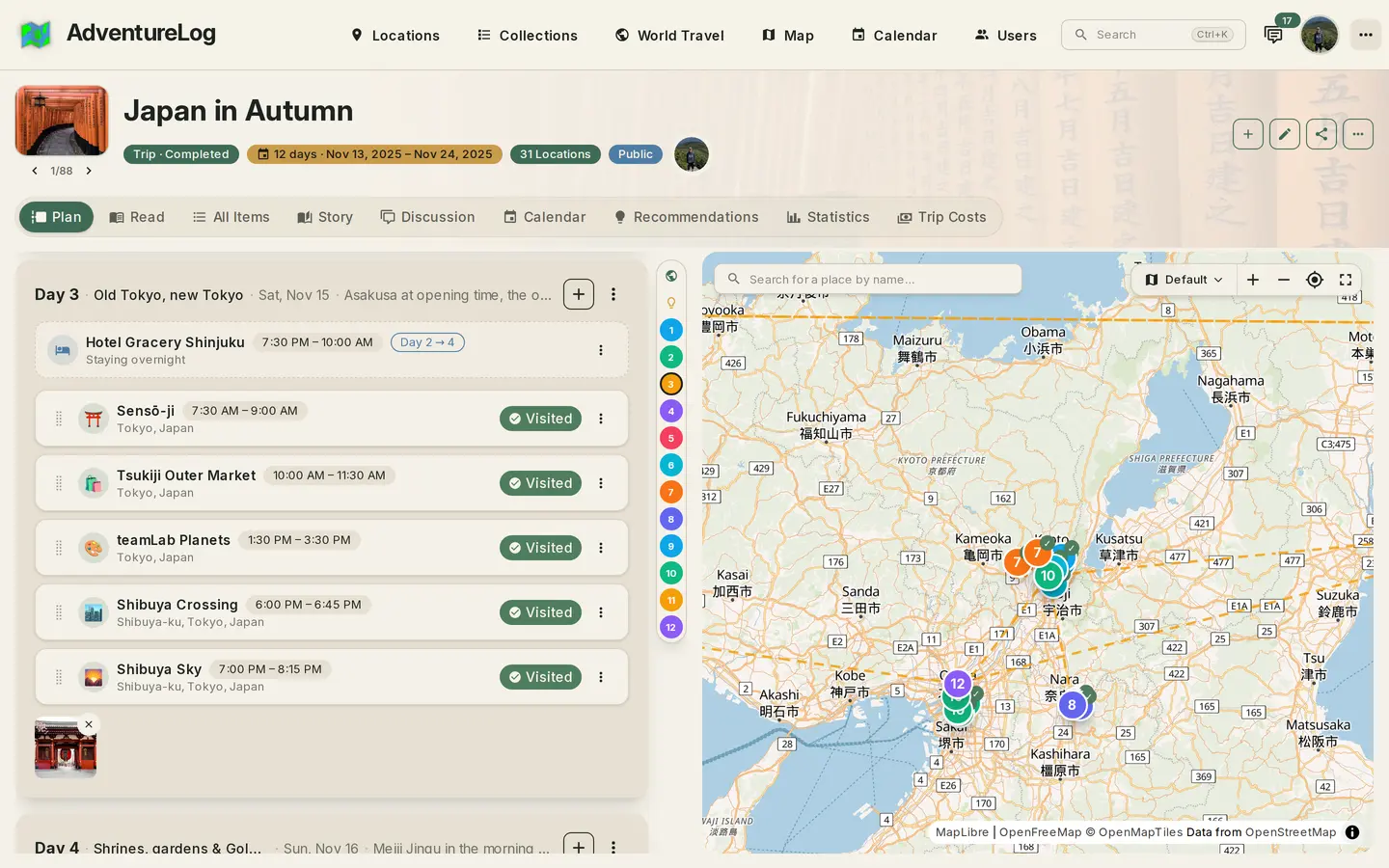
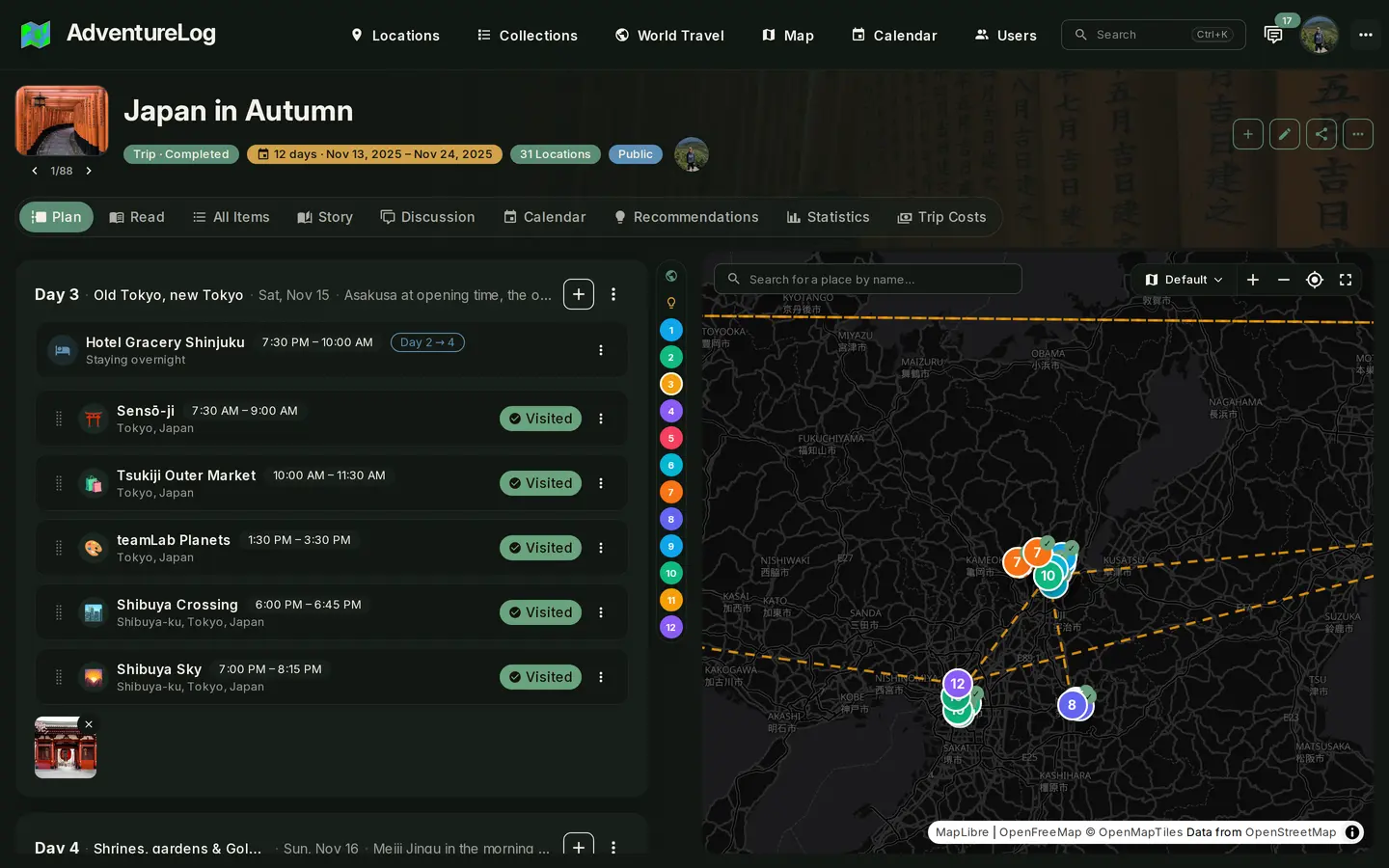
On a trip you can add:
| Item | Use it for |
|---|---|
| Places | The stops on each day. Add new ones, pick from locations you already have, or browse places near the trip. |
| Transportation | Flights, trains, buses, drives, and other journeys, with times and details such as a flight number. |
| Lodging | Where you're staying, with check-in and check-out times and reservation details. |
| Notes | Anything you want to write down, for one day or for the whole trip. |
| Checklists | Packing lists and to-dos, for one day or for the whole trip. |
A few things that make planning easier:
- Ideas holds locations you might fit in. Drag one onto a day when you decide.
- Trip-wide holds the notes and checklists that belong to the whole journey.
- Drag and drop a stop within a day, onto another day, or back to Ideas.
- Lodging and transport can span several days, and a stop can sit on more than one day.
- Mark a stop as optional, and give it a start and end time.
- Day actions insert, duplicate, move, or delete a day, and let you choose where its stops go.
- Shift dates moves the whole trip to new dates and keeps every day, order, and clock time as it was.
- Connect stops draws a line through a day's stops in order on the map.
When you're on the trip
Open a running trip and it jumps to today. Use Log visit on a stop, or Log day for the whole day, to record that you were there. That is what turns a planned location into a visited one. See Locations and Visits.
Recommendations
The Recommendations tab finds places near your trip by category, such as attractions, nature and parks, or cafés. Search near a city or the current map area, sort by best match, distance, or rating, and add a result to a day or to Ideas.
The calendar
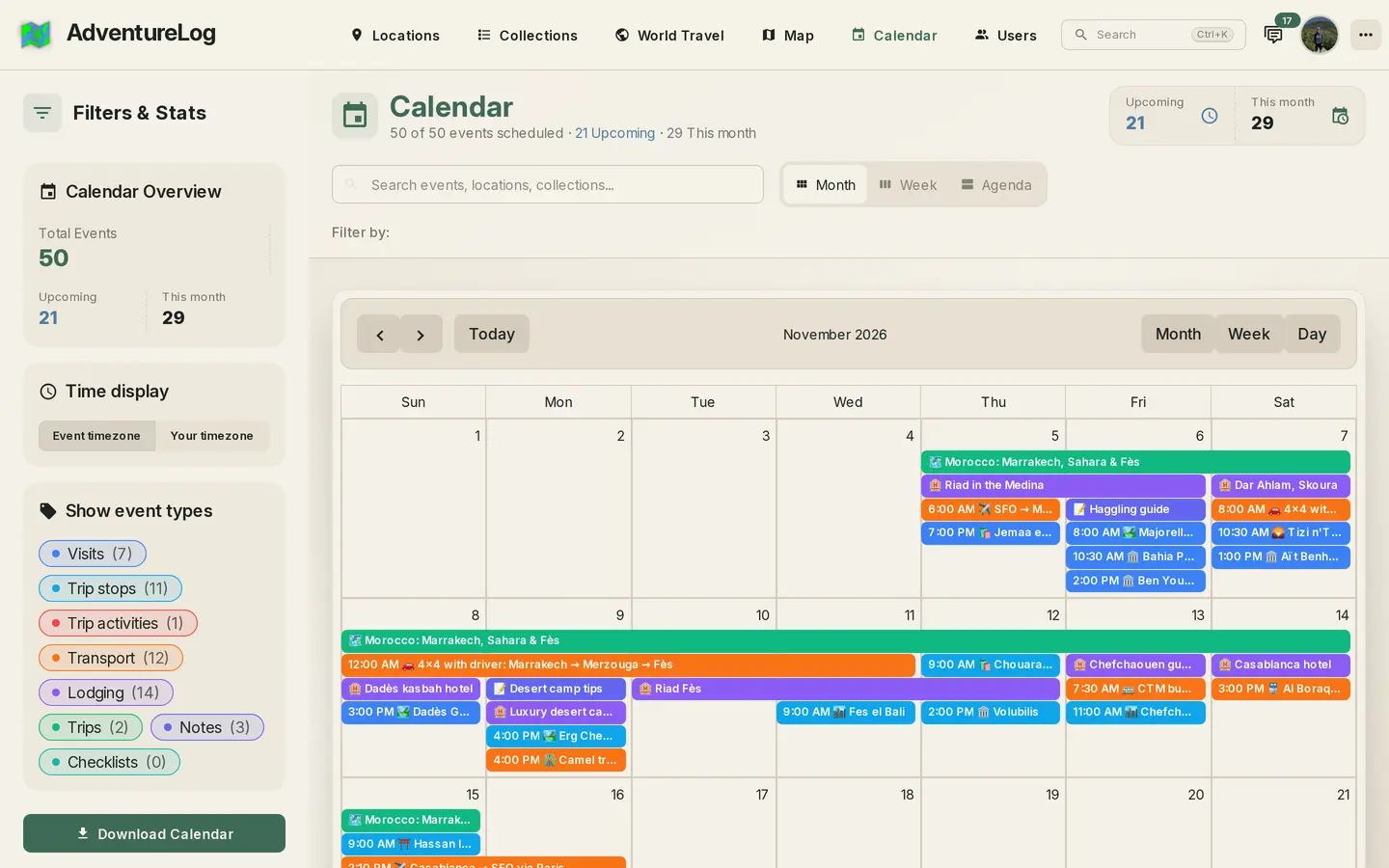
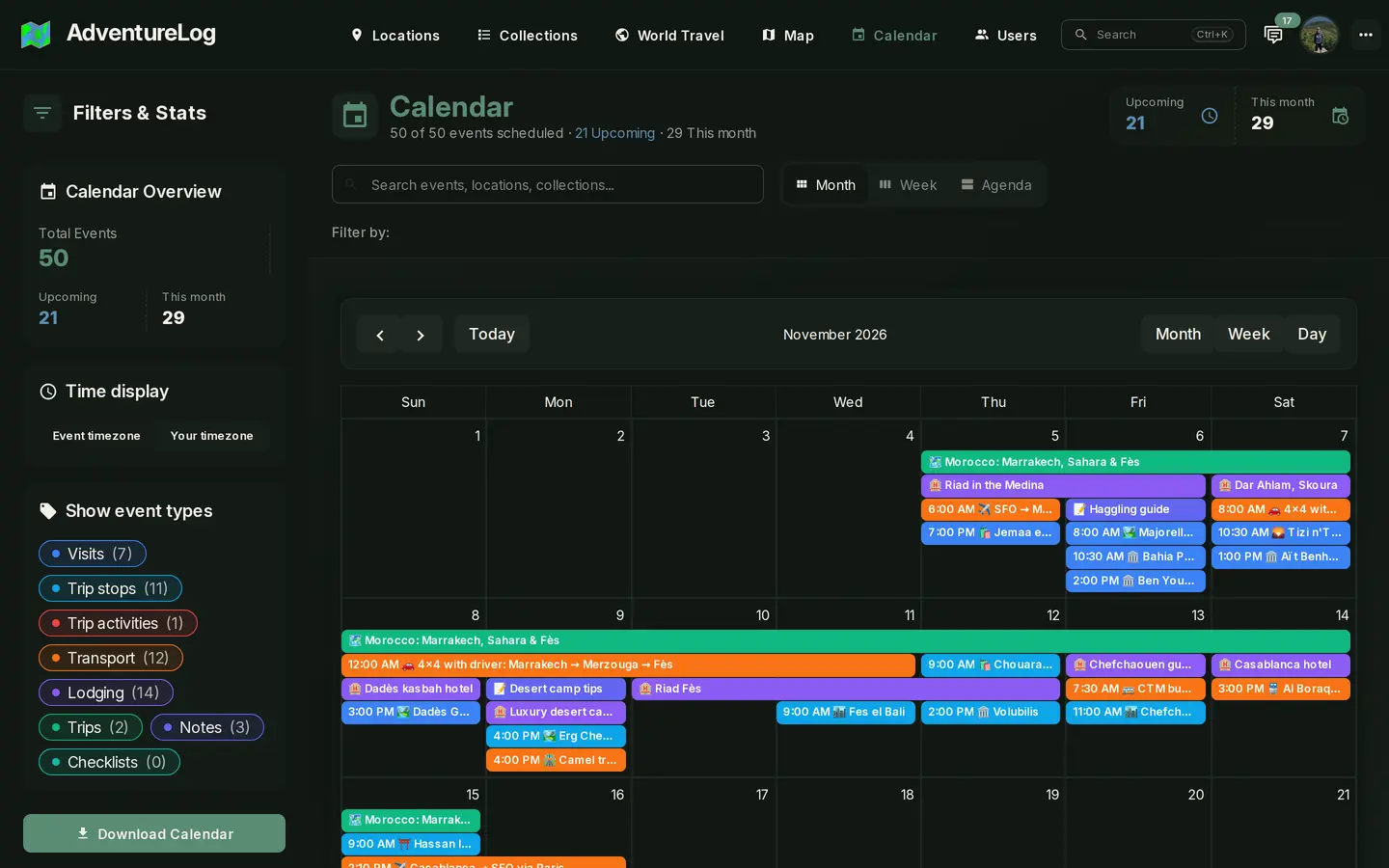
The Calendar page shows every trip, with its stops, transport, and lodging laid out by day. Download Calendar saves it as a file you can add to your own calendar app.
Printing a trip
Download PDF exports a collection to take with you:
- A trip becomes a Trip Book: a cover, an overview map, bookings and costs, and a page for every day.
- A folder becomes a Field Guide: an overview map, a checklist, and an entry for each location.
Choose A4 or Letter, include or leave out photos, and add space to write if you want to use it as a travel journal.
Exporting and importing a collection
A collection can be saved to a ZIP file and added to any AdventureLog account, which is handy for moving a trip to another server or keeping a copy. Open the collection's menu and choose Export ZIP. On the Collections page, choose Import from file.
- What the file contains: the collection and everything in it: locations with their visits, trails, activities, photos and attachments, plus transportation, lodging, notes, checklists, the day-by-day plan, and comments.
- What it leaves out: who the collection is shared with and any guest links, so the file can be passed around without giving anyone access. Comments keep the name of whoever wrote them but are not linked to their accounts. Your world travel visits are not included; use a full backup from Settings for those.
- Importing: the collection is added next to what you already have. If you already have a collection with the same name, the new one is called "Name (1)".
- Locations you already have: with Use locations I already have on (the default), a location in the file that matches one in your account is added to the new collection instead of being copied, and its visits and photos in your account are left as they are. Turn it off to create a new copy of every location.
A full backup from Settings is a different file. It replaces everything in your account, so it cannot be imported as a collection, and a collection file cannot be restored as a full backup. Collection files exported by older versions can still be imported.
Planning with other people
Share a trip so the people you travel with can edit it too, or publish it as a travel story for friends and family. See Sharing and Privacy.